
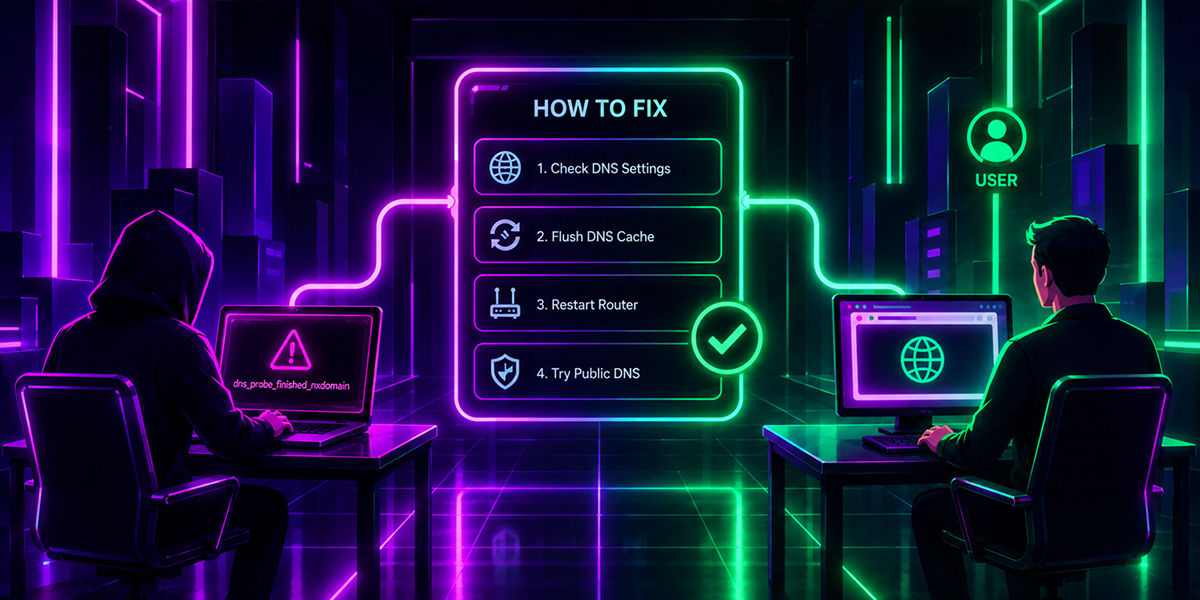
The good news is that the DNS_PROBE_FINISHED_NXDOMAIN error is usually easy to fix. It can be caused by an incorrect DNS configuration, an outdated DNS cache, problems with your internet connection, or issues with the domain's DNS records. Sometimes, the error can be fixed in just a few minutes by clearing your DNS cache or restarting your router. In other cases, you may need to change your DNS server or check whether the domain's DNS records are configured correctly.
The important thing is to first identify where the problem is coming from. Is it your device, your network, your DNS resolver, or the website itself? Once you know the source, choosing the right fix becomes much easier.
In this guide, we will explain what DNS_PROBE_FINISHED_NXDOMAIN means, why it happens, and how to fix it on your device.
What Does DNS_PROBE_FINISHED_NXDOMAIN Mean?
Before fixing the problem, it helps to understand what is happening when you see this error.
DNS, or Domain Name System, translates domain names such as example.com into IP addresses that computers can understand. When you enter a website address in your browser, your device sends a DNS query to find the IP address linked to that domain. If the DNS resolver cannot find the requested domain or receives a response saying that the domain does not exist, Chrome may show the DNS_PROBE_FINISHED_NXDOMAIN error. This means your browser could not get the DNS information it needed to connect to the website.
The "NXDOMAIN" part stands for Non-Existent Domain. In simple terms, your browser tried to find the website through DNS, but the DNS lookup failed because the domain could not be resolved.
This error can happen for several reasons:
- The domain name was entered incorrectly.
- The domain's DNS records are missing or incorrectly configured.
- Your computer has an outdated or corrupted DNS cache.
- Your router is using a problematic DNS resolver.
- Your ISP's DNS server is temporarily having issues.
- Your device's DNS settings are incorrect.
- A VPN, firewall, or security application is interfering with DNS requests.
- The domain itself has expired or is not configured correctly.
This means the error does not always originate from your computer. If the domain's DNS configuration is broken, there may be nothing wrong with your device at all.
How to Fix DNS_PROBE_FINISHED_NXDOMAIN Error
There are several ways to troubleshoot a DNS_PROBE_FINISHED_NXDOMAIN error. Start with the simpler fixes and move toward DNS configuration changes if the problem continues.
Check the Website Address
Start by making sure you entered the correct domain name. A simple spelling mistake can cause an NXDOMAIN response because DNS cannot find a domain that does not exist. For example, entering goggle.com instead of google.com can result in a DNS error.
You should also try opening another website. If other websites work normally but one particular website shows the error, the problem may be with that domain rather than your internet connection.
Restart Your Browser and Device
Close Chrome completely, then reopen it. If that does not help, restart your computer or phone. This is a basic step, but it can clear temporary network problems and restart services involved in DNS resolution. You can also try opening the website in Incognito mode. If the website works there, a browser extension, cached data, or another browser setting could be contributing to the problem.
Flush Your DNS Cache
Your operating system stores recently resolved DNS information in a local DNS cache. This allows your device to avoid performing a new DNS lookup every time you visit a website. However, if the cached DNS information is outdated or incorrect, it can sometimes prevent a website from loading.
On Windows, open Command Prompt as an administrator and run:
ipconfig /flushdnsYou should see a message confirming that the DNS Resolver Cache was successfully flushed.
On macOS, DNS cache management varies by macOS version. A commonly used command on current versions is:
sudo dscacheutil -flushcache; sudo killall -HUP mDNSResponderAfter flushing the cache, reopen your browser and try accessing the website again.
Restart Your Router
If flushing the DNS cache does not work, restart your router. Turn the router off, wait around 30 seconds, and turn it back on. Wait for the connection to become stable before testing the website again. This can help when the router's DNS resolver or network connection is temporarily stuck.
Change Your DNS Server
Your device normally receives DNS server information automatically from your ISP. If the ISP's DNS resolver is slow, unavailable, or returning incorrect results, changing to another public DNS service can help.
Popular options include:
- Google Public DNS:
8.8.8.8and8.8.4.4 - Cloudflare DNS:
1.1.1.1and1.0.0.1 - Quad9:
9.9.9.9and149.112.112.112
On Windows, you can change the DNS server through Settings → Network & Internet → your network connection → DNS server assignment. Choose manual DNS configuration and enter the preferred IPv4 DNS addresses.
On macOS, go to System Settings → Network → your connection → Details → DNS and add the DNS server addresses.
Once changed, reconnect to your network and try loading the website again.
Temporarily Disable VPNs and Security Software
VPNs, firewalls, antivirus programs, and other security tools can sometimes affect how DNS requests are handled. If you recently installed or changed one of these applications, temporarily disable it and test the website again.
Do not leave security software disabled unnecessarily. If the website works only when a particular application is turned off, check that application's DNS, network, or web protection settings instead.
How to Fix DNS_PROBE_FINISHED_NXDOMAIN When Only One Website Is Affected
If you can open other websites normally but consistently get a DNS_PROBE_FINISHED_NXDOMAIN error for one specific domain, the problem may be on the website's side. In this situation, changing your DNS settings may not solve the problem. The domain may have missing DNS records, incorrect nameservers, an expired domain registration, or another DNS configuration issue.
Check the Domain's DNS Records
Website owners can use DNS lookup tools to check whether the domain has valid records. An A record maps a domain to an IPv4 address, while an AAAA record maps it to an IPv6 address. You can use a Website to IP Lookup tool to check which IP address a domain resolves to. Also, a Nameserver (NS) record tells DNS resolvers which servers are authoritative for the domain.
If these records are missing or incorrectly configured, DNS resolvers may be unable to find the domain. For example, if a website's nameservers were recently changed but the new configuration has not propagated correctly, some users may temporarily experience DNS resolution problems.
Check Whether the Domain Exists
An NXDOMAIN response can also mean that the domain genuinely does not exist. If you manage the domain, check your domain registrar to make sure it has not expired. Then verify that the domain is using the correct nameservers and that its DNS zone contains the required records.
If you are simply visiting the website, there may be little you can do besides contacting the website owner or waiting for the DNS configuration to be corrected.
What to Do If the DNS_PROBE_FINISHED_NXDOMAIN Error Keeps Coming Back
If the error disappears after flushing your DNS cache or changing DNS servers but returns frequently, there may be an underlying network or DNS configuration problem.
Start by checking whether the problem happens on multiple devices connected to the same Wi-Fi network. If every device experiences the error, the router, ISP, or upstream DNS resolver may be responsible. If only one computer experiences the problem, check its DNS configuration, VPN settings, browser extensions, and security software.
You can also use the nslookup command to see how your DNS resolver responds to a domain:
nslookup example.comThe command shows the DNS server being used and the response received for the domain. If it cannot resolve the domain, try the same lookup using another DNS server to determine whether the issue is specific to your current resolver.
For example:
nslookup example.com 8.8.8.8Comparing the results can help identify whether the problem is local to your configured DNS server or related to the domain itself.
What to Keep in Mind
DNS problems are not always as serious as they first appear. A temporary resolver issue, an outdated cache, or a minor DNS configuration error can be enough to prevent a website from loading. Knowing how DNS works makes it easier to understand what is happening rather than assuming the website is down.
If you manage a website or domain, keeping an eye on your DNS records can also help you catch configuration problems before they affect visitors. Changes to DNS records can impact how your website, email, and other services connect to your domain, so having visibility into those records is useful beyond fixing a single browser error. Learn more about continuous DNS monitoring and change detection.
If you want to see what DNS information your domain is currently returning, check your DNS records with NsLookup.io. It gives you a quick way to inspect your domain's DNS configuration and spot potential issues.